
To allow easy access to CENTURY, you can save the website to your home screen or desktop using the following steps:
Desktop computer (Google Chrome)
-
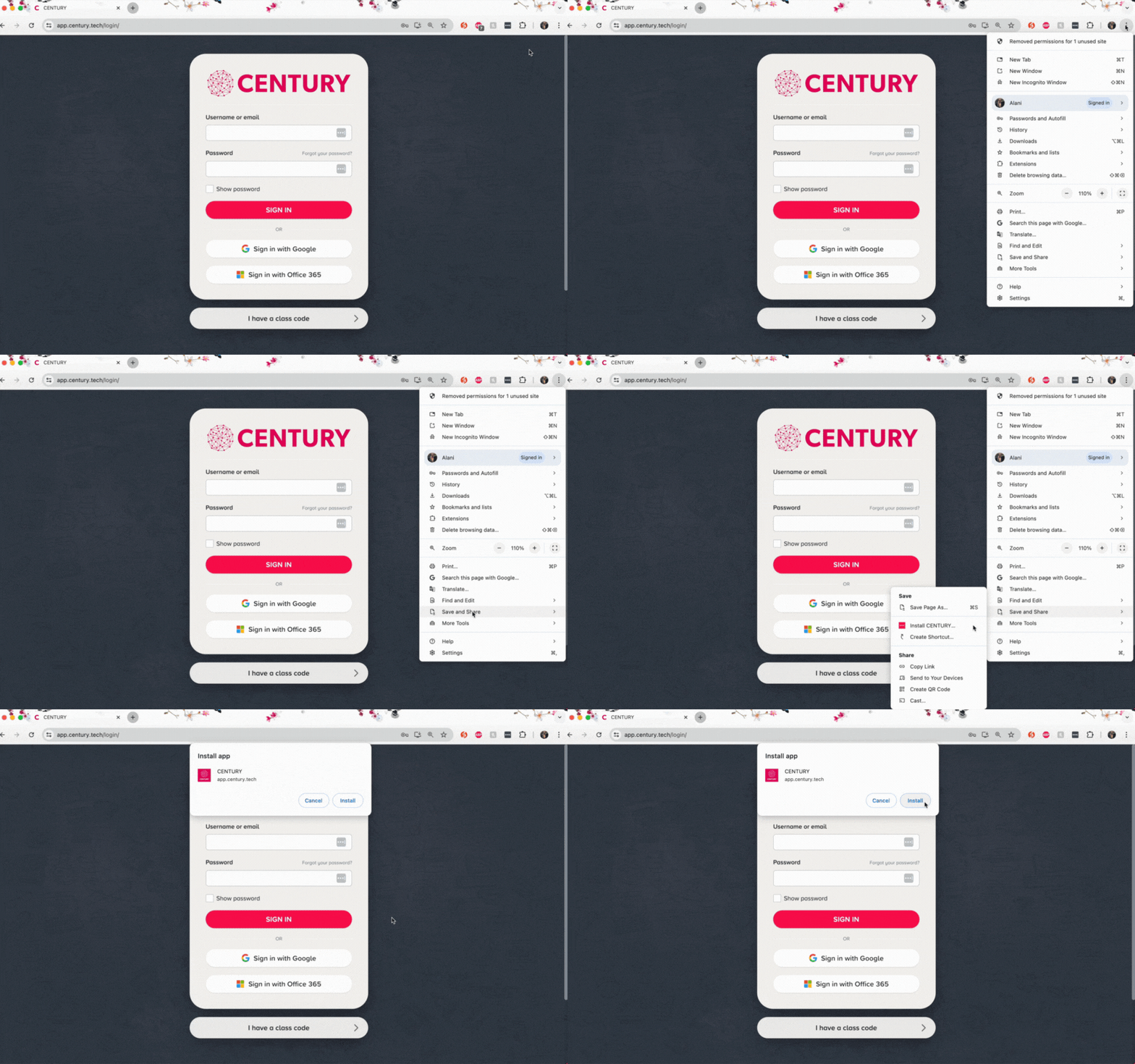
Go to app.century.tech in Google Chrome.
-
Click on the three dots icon in the top right of the window.
-
Click on ‘Save and Share’, then ‘Install CENTURY’.
-
CENTURY should now be installed as a Chrome app. The ‘Chrome Apps’ folder will appear, and you can drag the CENTURY app onto your desktop.
iPhone or iPad
-
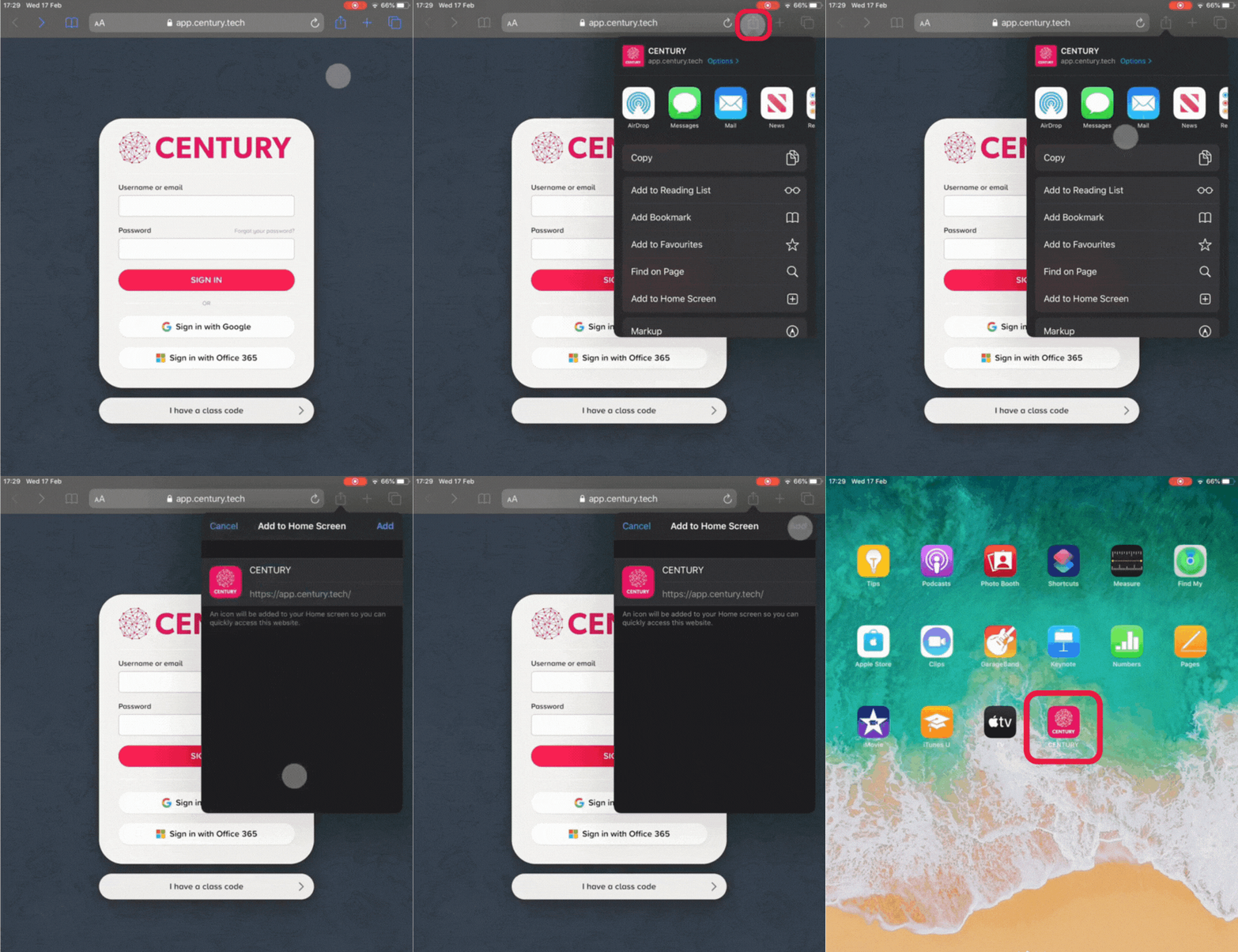
Go to app.century.tech in Safari.
-
Click on the ‘Share’ icon, then select ‘Add to Home Screen’.
-
Click ‘Add’. CENTURY should now appear on your home screen.
Android phone or tablet (Google Chrome)
-
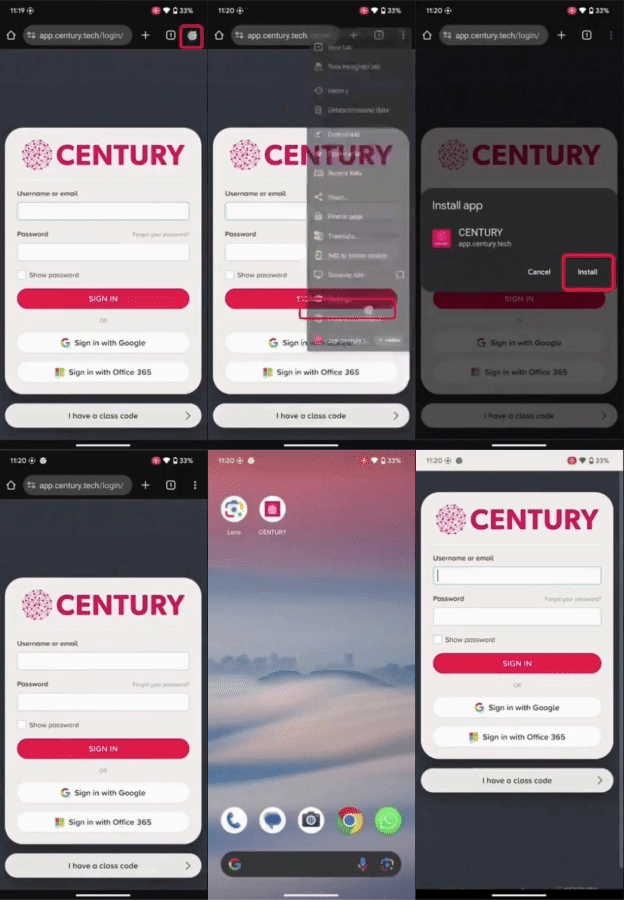
Go to app.century.tech in Google Chrome.
-
Click on the three dots icon in the top right of the window.
-
Click on ‘Add to Home screen, then ‘Install’.
-
A pop-up notification will appear once CENTURY has been installed. You should now see a CENTURY icon on your home screen.