
Note: Only teachers with Manager permissions can deactivate / reactivate student accounts. Please contact your Account Manager or support@century.tech if you would like to update your CENTURY permissions.
Deactivating student accounts
If you deactivate a student, they will no longer be able to access their account on CENTURY. However, their usage data and progress will still remain in your Dashboards.
To do so, follow these steps:
-
Go to your Class Admin tab.
-
Go to the Students tab.
-
Search and select the student whose information you wish to update.
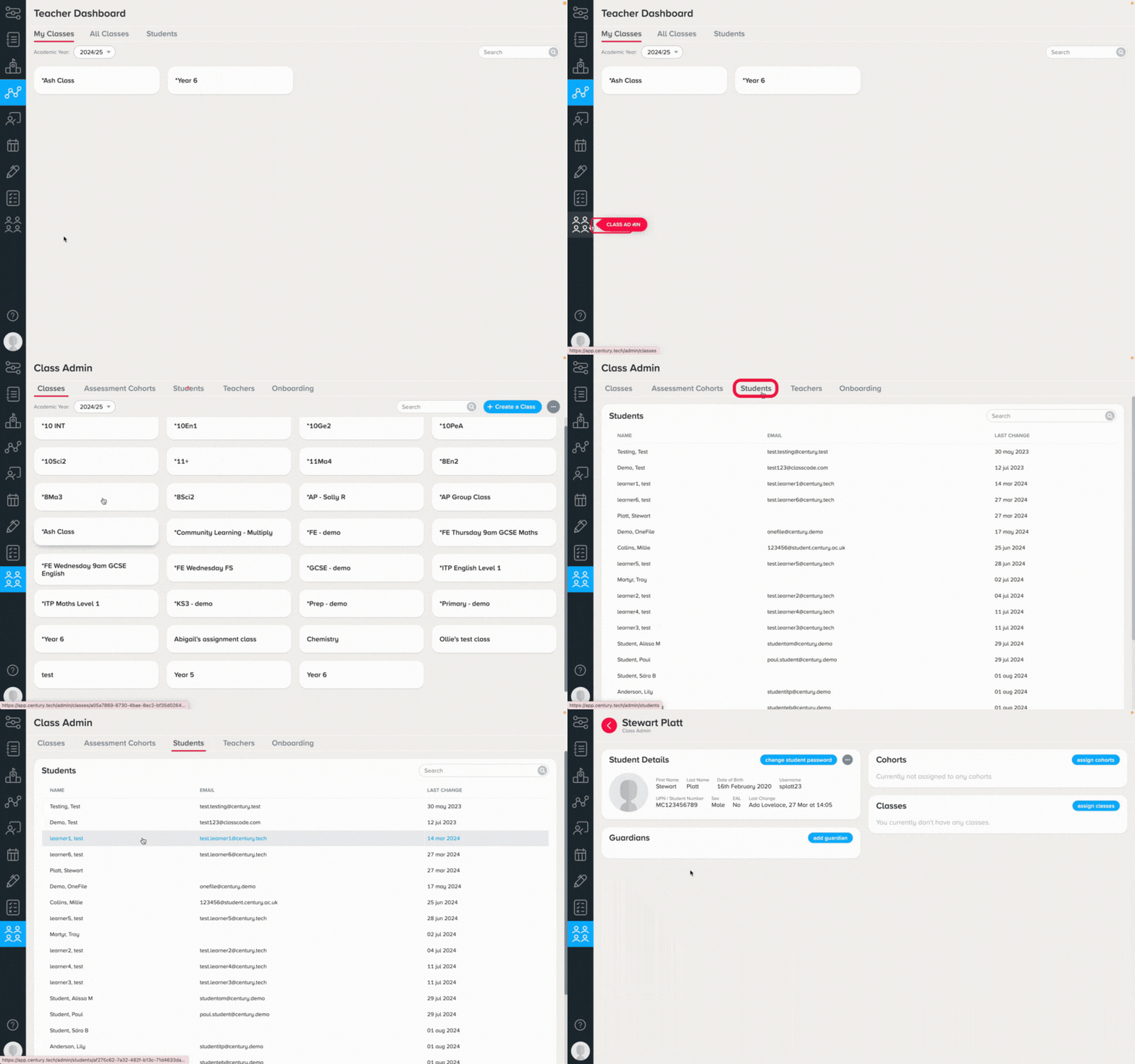
4. Select the three dot icon to the right of their name, then select ‘Deactivate account’.
5. The student’s name should now include ‘[Deactivated]’. You also will no longer be able to edit any of the information on their profile or add them to classes.
Reactivating student accounts
To reactivate a student, simply click the ‘Reactivate account’ button on the student’s account page.
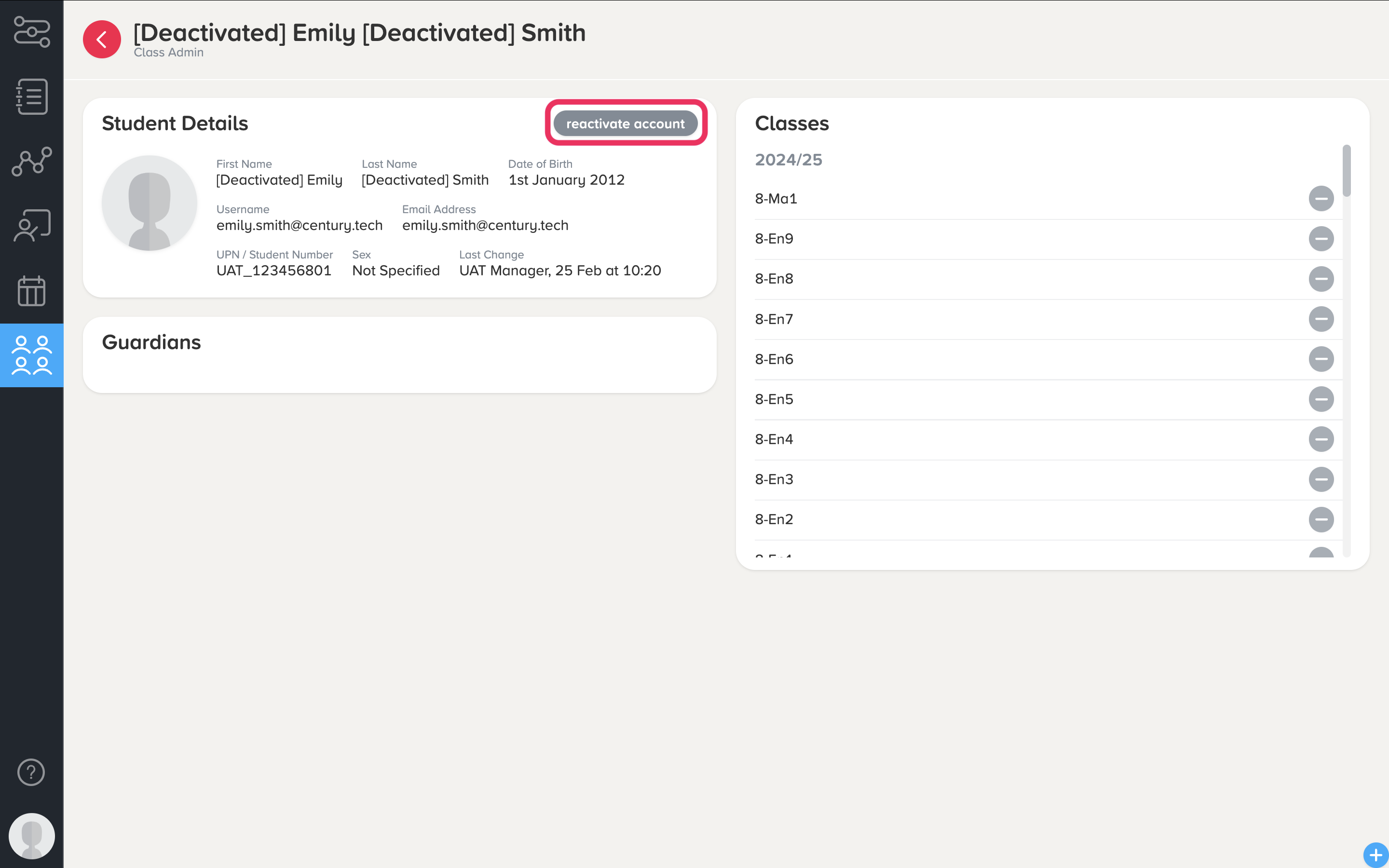
This will remove ‘[Deactivated]’ from their name, and enable them to log in to their account as usual.